How to Set Up Home Assistant ZBT-2 for a Stable Smart Home Network

Setting up a reliable smart home starts with the right foundation. This guide walks through the Home Assistant ZBT-2 setup for stable performance.
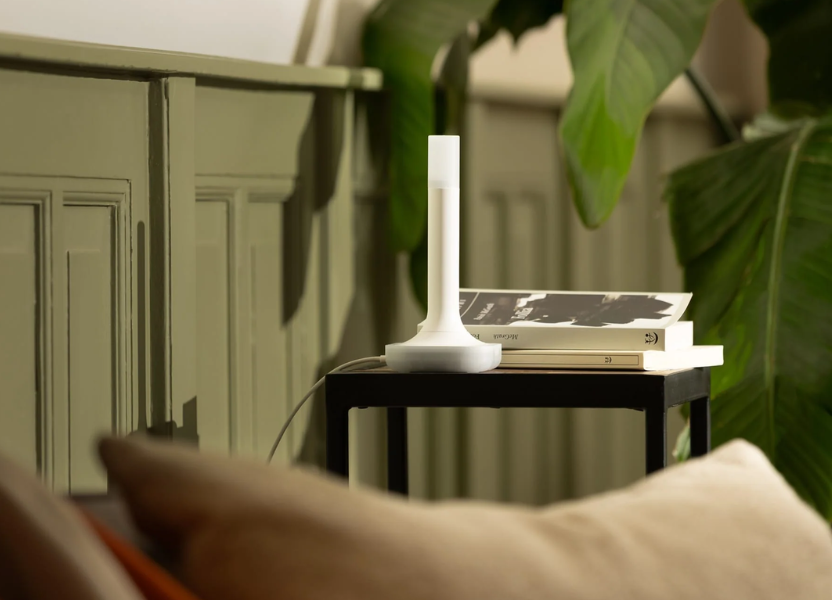
A smart home that works well needs more than simple devices. How nicely everything works together behind the scenes is what matters. This article tells you how to set up Home Assistant ZBT-2 the right way, avoid common mistakes, and make a Zigbee network that will stay reliable for a long time.
What Home Assistant ZBT-2 Actually Does
Home Assistant is basically a single hub that connects all of your smart gadgets into one system. You may control lights, sensors, switches, and cameras all from one dashboard, and they will stay private and local.
The Home Assistant Connect ZBT-2 is the gadget that connects Zigbee and Thread devices. It works like a bridge between your devices and the platform, letting them talk to each other right away without using cloud services. This local control is one reason why a lot of people switch to Home Assistant settings.
Its ability to support two protocols is what shines out. Zigbee and Thread work together in one device, which makes it easy to add more devices without having to change hardware later. Many setups don't work because they depend on a small number of coordinators that have trouble when more devices are added.
Preparing Your System Before Setup
You need to set things up right before you plug anything in. People have connection problems because they don't do simple things that may seem tiny but have a major impact on performance over time.
Hardware and Compatibility Requirements
Check to see if your system can handle USB-based coordinators and has a recent version of Home Assistant before you install the device. Most of the time, devices like Home Assistant Green or Raspberry Pi installations function fine.
A few things to check right away:
- A steady power source for your Home Assistant host.
- A USB port or USB extension cord that is free.
- Zigbee devices that follow the rules for profiles.
People on forums commonly say that Zigbee dongles don't work well when plugged directly into a congested USB port. A short USB extension cord can assist cut down on interference from surrounding hardware.
Firmware And Software Preparation
Most current systems automatically find the ZBT-2, but keeping everything up to date can save you time and trouble later. This includes changes to the core of Home Assistant and helps with integration. The ZBT-2 Home Assistant integration works best with the built-in ZHA integration or Thread support. Both are designed to work natively without complex configuration.
A quick system restart after updates can prevent detection issues. It sounds simple, but many setup problems reported in communities trace back to skipped restarts.
Step-by-Step Setup Process For ZBT-2 Home Assistant
Once preparation is complete, the setup itself becomes straightforward. The process is designed to be plug-and-play, but attention to detail still matters.
Connecting the Device
To begin, make sure the antenna is properly attached to the device. The antenna is very important for signal strength, especially in homes with more than one room or a lot of space. Use the USB-C cable to connect the gadget to your system. The LED light shows the orientation and connection status, which helps make sure the antenna works well.
Placement matters more than most expect. Keeping the device away from WiFi routers or metal surfaces improves signal quality immediately.

Integrating With Home Assistant
When you're connected, open Home Assistant and click on "Integrations." The system usually finds the device on its own and tells you to add it. Choose between Zigbee or Thread based on how your system is set up. Zigbee is still the most popular choice because its compatible with more devices.
The coordinator becomes the main point of contact for all Zigbee communication once it is added. This is where the system starts to make a mesh network in your home.
Pairing Zigbee Devices
Start pairing devices one at a time. This helps avoid confusion and ensures each device connects properly to the network. Set your Zigbee device to pairing mode, and then start pairing from Home Assistant. When you put most devices close to the coordinator, they connect in a matter of seconds.
People generally see better outcomes when they first link devices that are close to the coordinator and then move them to their final location. This makes the first bond stronger.
Common Setup Issues and How to Fix Them
Even with a smooth process, a few issues appear frequently. Most of them have simple fixes once the cause is clear.
Connection Drops
Connection drops usually come from interference or weak signal paths. WiFi routers operating on similar frequencies can disrupt Zigbee communication.
To fix this:
- Take the coordinator away from the routers.
- Use a cable that extends USB.
- If you need to, change the Zigbee channel settings.
People often say that moving the coordinator even a little distance can quickly stabilize the network.
Devices Not Pairing
When devices fail to pair, distance and reset state are the most common causes. Devices need to be close to the coordinator during initial pairing.
Reset the device fully before trying again. Many pairing failures happen because the device is still connected to a previous network.
Some devices need to be paired more than once. This is normal and doesn't always mean that the setup is broken.
Tips to Improve Zigbee Network Stability
A strong Zigbee network builds over time rather than instantly. The goal is to create a mesh where devices support each other.
Add powered Zigbee devices like smart plugs or switches first. These work like routers and make the network available in more places in your home.
Placement is very important for stability:
- Make sure that devices are spaced out evenly in each room.
- Don't put everything in one place.
- Reduce obstacles like thick walls where possible.
The antenna on the ZBT-2 provides extended coverage, but a well-planned mesh network still makes the biggest difference.
Another thing that people don't think about is network growth. The system may get overloaded for a short time if you add too many devices at once. Slow growth helps keep things stable.
Frequently Asked Questions
Does Home Assistant ZBT-2 Support Both Zigbee and Thread?
Yes, the device supports both protocols in one unit. This allows future expansion into Matter compatible setups without replacing hardware.
How Far Can the Signal Reach?
Range depends on environment and obstacles. The built in high gain antenna improves coverage across multiple rooms, but walls and interference still affect performance.
Is Internet Required For It To Work?
No, Home Assistant is all about local control. Devices talk to each other on your network, which makes things faster and more private.
Why Do Some Devices Disconnect Randomly?
This frequently happens because the mesh networks are poor or there is interference. The problem is usually fixed by adding routing devices and adjusting placement.
Can Beginners Set It Up Easily?
The setup process is simple compared to older Zigbee coordinators. Most people complete installation within minutes if the system is prepared correctly.
Building a reliable smart home comes down to small decisions that shape long term performance. The Home Assistant ZBT-2 simplifies connectivity, but stability depends on how thoughtfully the network is built. With solutions developed and distributed by Seeed Technology Co., Ltd, the focus stays on practical usability combined with long term flexibility.
Taking time to optimize placement, grow the mesh gradually, and keep the system updated often makes a noticeable difference in everyday performance.
Follow RuggedOutfits for more insights on home and technology.
Recent Blogs
-

Does Rugiet Go Long Really Work and What Can You Realistically Expect
-

Fairmont Guide: Choosing the Right Luxury Hotel Stay
-

Affiliate Store Review: Finding the Right Parenting Products Online
-

Best Electric Scooter for Adults by VORO MOTORS Who Want Fast Transportation
-

Best Bikes for Sale in 2024: Top Picks from Mike's Bikes